Custom projections
The whole idea behind projected coordinate systems—“projections,” for short—is that they are just algorithms. Even though they are not off the shelf, so to speak, you can apply projection algorithms centered on any place in the world. What if UR was at the center?
Point for Richmond
Let’s get a simple point for Richmond’s campus:
- Map > click “Search” (the binoculars)
- Search “university of richmond”
- Right-click the first option > “Add to feature class” > “create new feature class”
- This will initiate the “Edit” process, so afterwards, click “Edit” > “Save” in the Ribbon
- I made UR a spider
Make it the center
Now, let’s make a custom azimuthal projection centered on UR:
- Make sure your coordinates are set to decimal degrees
- Right-click the UR point > “Copy coordinates”
- Now right-click the map frame > Properties (or double-click the map frame) > Coordinate systems > “Add coordinate system”:
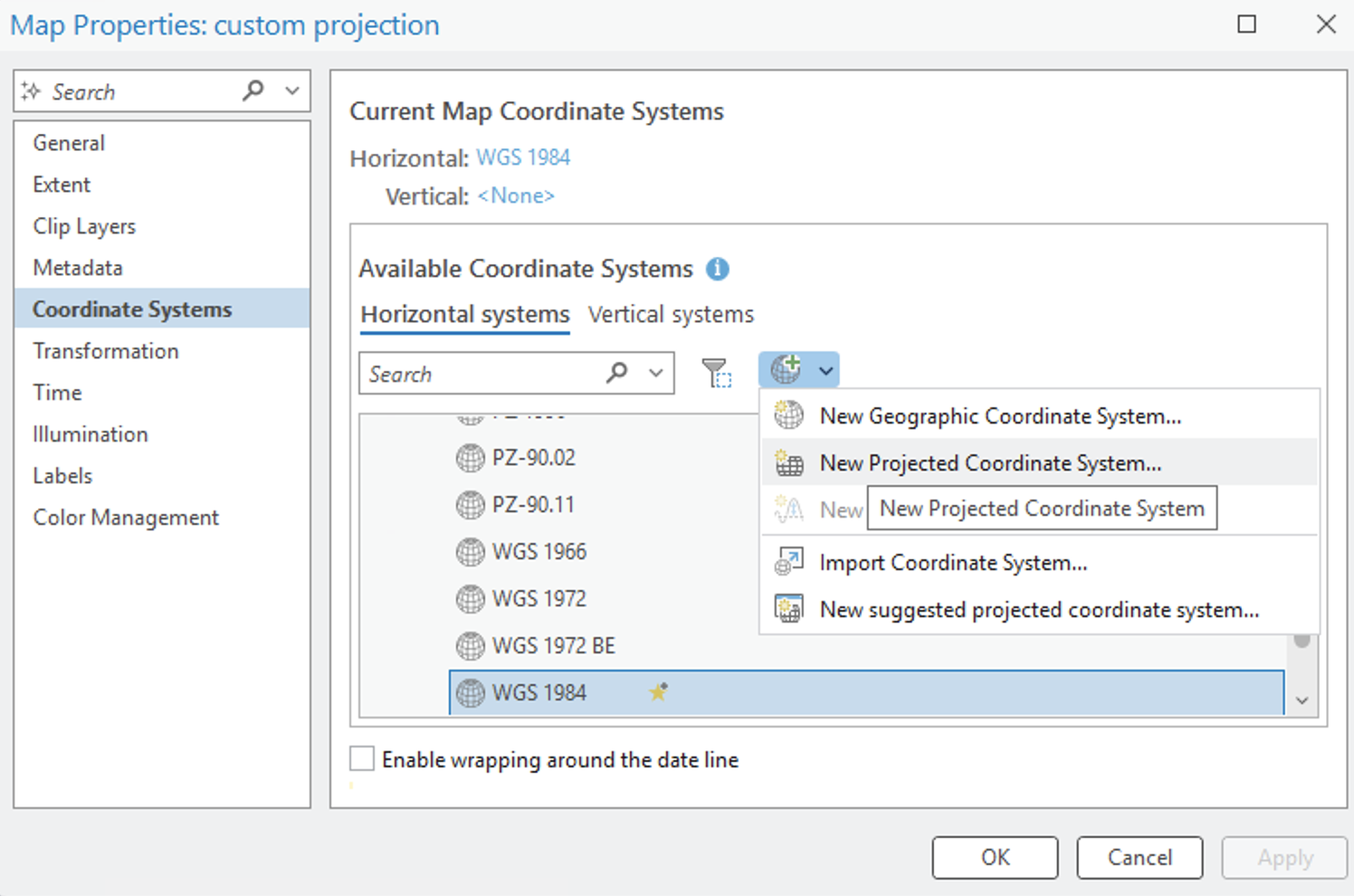
- Select “Azimuthal equidistant” from the drop down
- Leave the false northings/eastings at 0 (these are used to manage negative coordinate values, we don’t need to worry about it)
- Using your copied coords from UR campus:
- Set the central meridian the ~77 value, and make it negative
- Set latitude of origin about 37.5
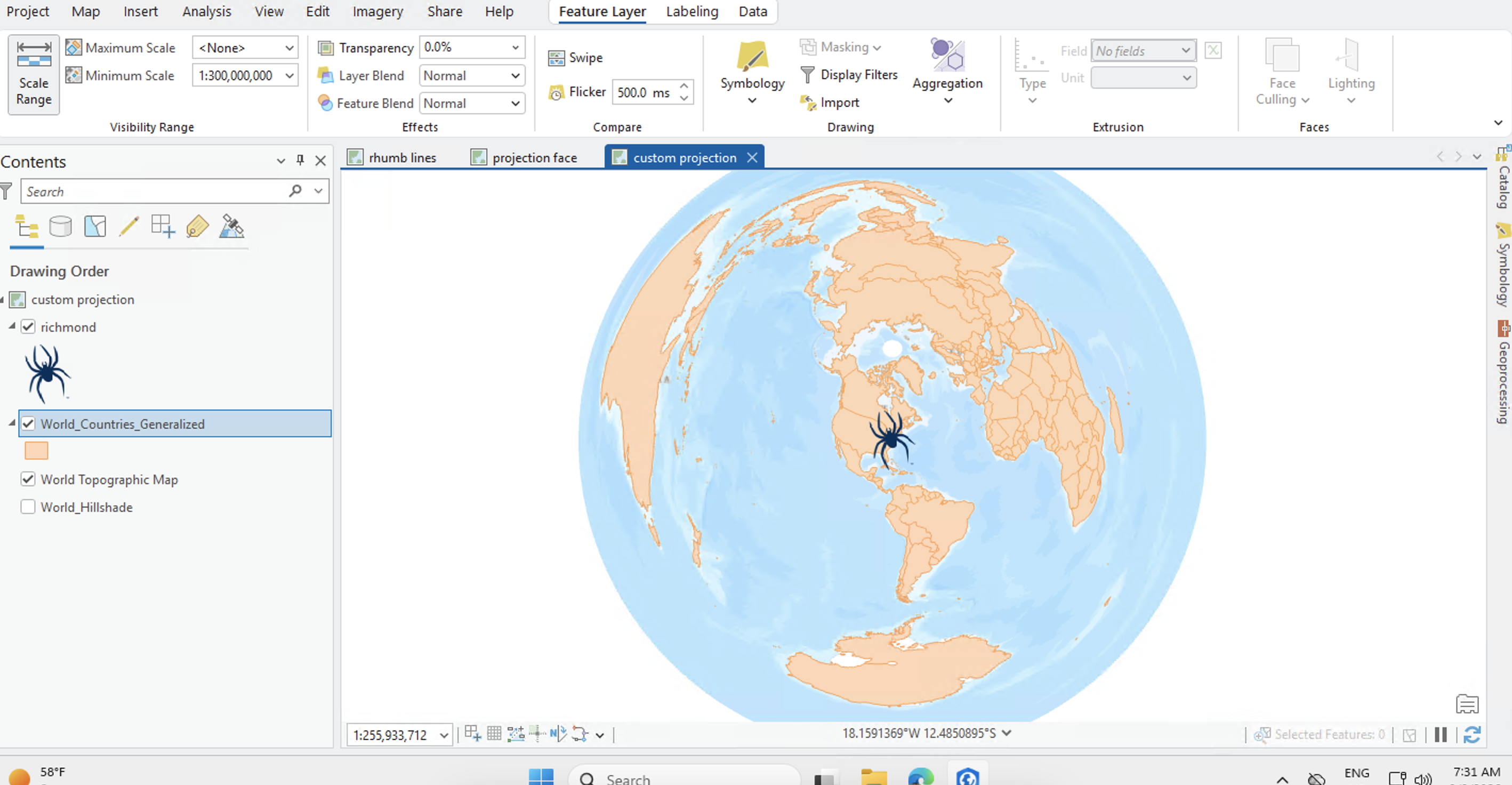
- Click OK and your map should reposition Richmond to be the center of the world (note that the countries layer I added has a minimum “visibility range” that you may need to change):