Lab 2
Data and civics
| Assigned | Due | Submit |
|---|---|---|
9/22/26 |
9/29/26 |
Before you proceed, don’t forget to create a workspace for this assignment! You probably don’t need me to keep banging this drum but I am going to do it anyway. I recommend saving your ArcGIS Pro project something like lab02_data-civics and saving it under \\hemisphere\geopower\students\GEOG248\yourname.
In this lab, you are a member of the Richmond Civic Data Collaboratory, a research group who makes place-based data visualizations with local community partners. Your group has received a request from an employee at the City of Richmond who wants to help city councilors better understand who lives in their districts. It’s easy to eyeball this kind of thing with census data, but because city council districts do not align to census statistical areas (e.g., tracts, block groups), we need to process the data a little bit before we can visualize it. In this lab, you will download data from the US Census for Richmond, Virginia’s block groups and do some simple areal interpolation to fit those block groups to city council districts.
Note that I’ve scrapped the curatorial reflection assignment. You will use the data that you prepare this week, in the council district profile assignment, which replaced the curatorial reflections and now functions as your midterm assessment.
A refresher on Census data
Data formats
The Census Bureau distributes its files in a variety of formats that can be divided into two types: spatial data files and data tables.
The spatial data files are available as TIGER/Line files in shapefile format. “TIGER” is short for “Topologically Integrated Geographic Encoding and Referencing,” which emerged out of a collaboration between the US Census Bureau and the US Geological Survey in the 1980s and yielded—in addition to spatial data files for mapping Census information—this really sick tiger logo:

The data tables are available as Excel spreadsheets and in simple .csv format from https://data.census.gov. It’s important to remember that the “mapping files” published by the Census do not, by default, contain any demographic attributes. Because there is just so much Census data out there, you need to download the tables yourself and table join the data on your own.
In many cases, you’ll be able to find Census data that has already been joined to the geographical units you are interested in. However, for any long-term project or a project that is focused on specific research questions, you’ll ultimately need to download your own data.
Decennial vs. ACS
For most of the United States’ history, Census data was only made available every ten years through the decennial Census. Beginning in 2000, however, the Census Bureau started conducting an annual survey called the American Community Survey (ACS). This makes Census data available with far greater frequency, but it cannot be compared to decennial Census data and it is generally subject to higher margins of error.
Universes
When you work with any Census dataset, you are also working with a particular universe of data. “Universe” is the Census’ term for the total group of units being measured. Sometimes the units are people, as when you are measuring something like race, gender, or ethnicity; sometimes the units are households, as when you are measuring median home price or housing tenure.
Pew Research, one of the most recognizable public polling and opinion organizations in the United States, deals with this problem in all of their surveying. Consider this conundrum, as recounted by Pew Research Associate Director John Gramlich:
In many cases, the universe of survey respondents we’re talking about is relatively straightforward. If we say that nearly two-thirds of U.S. adults think the national economic situation is good, we’re referring to the views of Americans ages 18 and older. But in other cases, additional clarification and context may be needed, particularly for readers who aren’t schooled in the art of interpreting poll results.
Consider one of our recent survey findings about Facebook users. The survey found that 74% of adult Facebook users in the U.S. have taken at least one of the following three steps in the past 12 months: adjusted their privacy settings, taken a break from checking the platform for several weeks or more, or deleted the app from their phone. The survey drew a lot of attention because it suggested – correctly – that adult Facebook users in the U.S. have a complex relationship with one of the major social platforms in their lives.
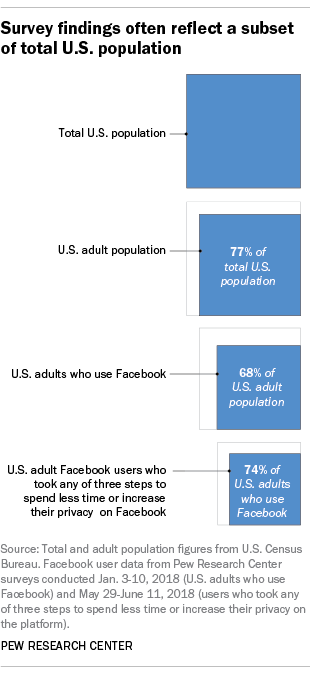
Understanding the universe of a given Census dataset should be among the first steps when you are working with Census data. This is especially pronounced within ACS data, which is designed as a survey and not a comprehensive census; for example, a comparison of ACS gross rent data with decennial Census gross rent data:
Data on gross rent in the ACS should not be compared with 2000 Census gross rent data. For the 2000 Census, tables were not released for total renteroccupied units. The universe in the 2000 Census was “specified renter-occupied housing units,” which excluded one-family houses on 10 acres or more, whereas the universe in the ACS is “renter-occupied housing units,” thus, comparisons cannot be made between these two data sets.
Chapter 9, Differences Between the ACS and the Decennial Census
| Organization | Data | Access method | URL |
|---|---|---|---|
| US Census Bureau (Mapping files) | Spatial data | Graphic interface | https://census.gov/geographies/mapping-files/ |
| US Census Bureau (Data tables) | Tabular data | Graphic interface | https://data.census.gov |
| US Census Bureau (API) | All kinds | API (access key required) | https://api.census.gov |
| National Historic GIS | Spatial and tabular data | Graphic interface (login required) | https://www.nhgis.org |
| Census Reporter | All kinds | Graphic interface | https://censusreporter.org |
Downloading the spatial data
In this lab, you’ll be using a variety of resources from the Census Bureau to download data, including normal graphic interfaces and web APIs via Python.
If you are not a coding person, don’t fret! This lab will introduce you to some basic Python stuff, but we aren’t even really using it to do Python GIS.
You will download a bunch of data in this lab so it could be a good idea to make two folders and keep your data separately stored in each one. Inside my project workspace, I’m going to create a folder called spatial-data and another one called tabular-data.
Census shapefiles, the old-fashioned way
First, we’re going to download some spatial data. Nothing fancy here, we’ll do it old-fashioned:
- Go to the place where they keep all the census mapping files: https://www.census.gov/geographies/mapping-files.html
- Scroll down until you see a list of years and click 2025 (some folks reported issues with this step if using Google Chrome, so if you hit any snags, try another browser)
- Scroll further down, click “TIGER/Line shapefiles” > “Web interface”
- Select the year “2022” > Pick “Block group” > select “Virginia” > click “Download”
- A
.zipfile should appear in your downloads folder. Move it to your project workspace, unzip it, and add it to the ArcGIS Pro project.
Now, let’s get ahead of some map projection stuff:
- Update the map’s projection to “NAD 1983 (2011) StatePlane Virginia South FIPS 4502 (US Feet)”
- Open the “Project” geoprocessing tool (search in the “Command Search” bar or the geoprocessing pane) and use the following params:
- Input dataset =
tl_2022_51_bg - Output dataset =
vaBlockGroups - Output coordinate system = “Current Map [Map]” (Just confirm this does use the coord system you picked above)
- Click “Run”
- Input dataset =
- You can remove the
tl_2022_51_bglayer
Finally, let’s make a subset of these block groups that is zoomed right into the City of Richmond:
- Open “Select by attributes” on the
vaBlockGroupslayer - Build a clause where
COUNTYFPis equal to760(760 is the City of Richmond’s FIPS code) - Click “Run” and you should get 190 records back
- Right-click the
vaBlockGroupslayer > “Data” > “Export features” with these params:- Input features =
vaBlockGroups - Output features =
richmondBlockGroups
- Input features =
- Clear your selection
Let’s do a quick dissolve of the vaBlockGroups layer. We’ll do it twice to create a feature class for Virginia and then a feature class for VA counties:
Open the “Dissolve” tool and use these params:
- Input features =
vaBlockGroups - Output feature class =
virginia - Leave everything else blank
Then, run the “Dissolve” tool again, but this time use COUNTYFP as a “Dissolve Field.” This will aggregate all of the features that share a COUNTYFP value into the same feature.
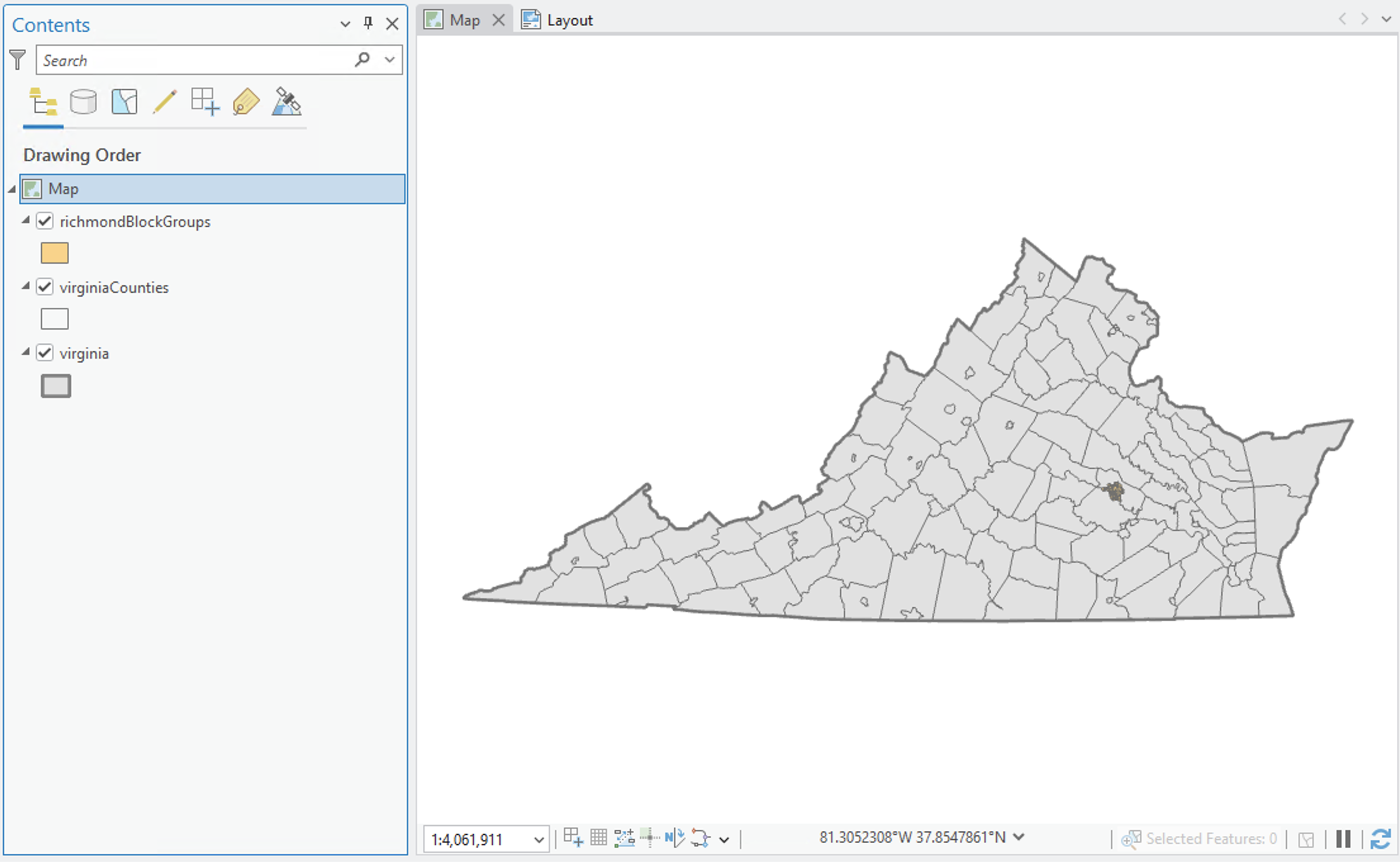
Take a moment to symbolize each of these layers in a way that makes sense to you. At this point, I removed the default basemaps because we don’t really need them for this type of thematic mapping project. Before moving to the next section, your data should look something like this:
Richmond’s data portal
Since this lab deals with aggregating block groups up to city council districts, now is a good time to go download city council district data as well:
- Go to the City of Richmond’s open data portal: https://richmond-geo-hub-cor.hub.arcgis.com
- Search “council districts” and select the “Council Districts” feature layer
- Click “Download” > select “Shapefile” from the download options
- Unzip and move the downloaded data into your project workspace, then add it to your project and symbolize. Mine looks like this:
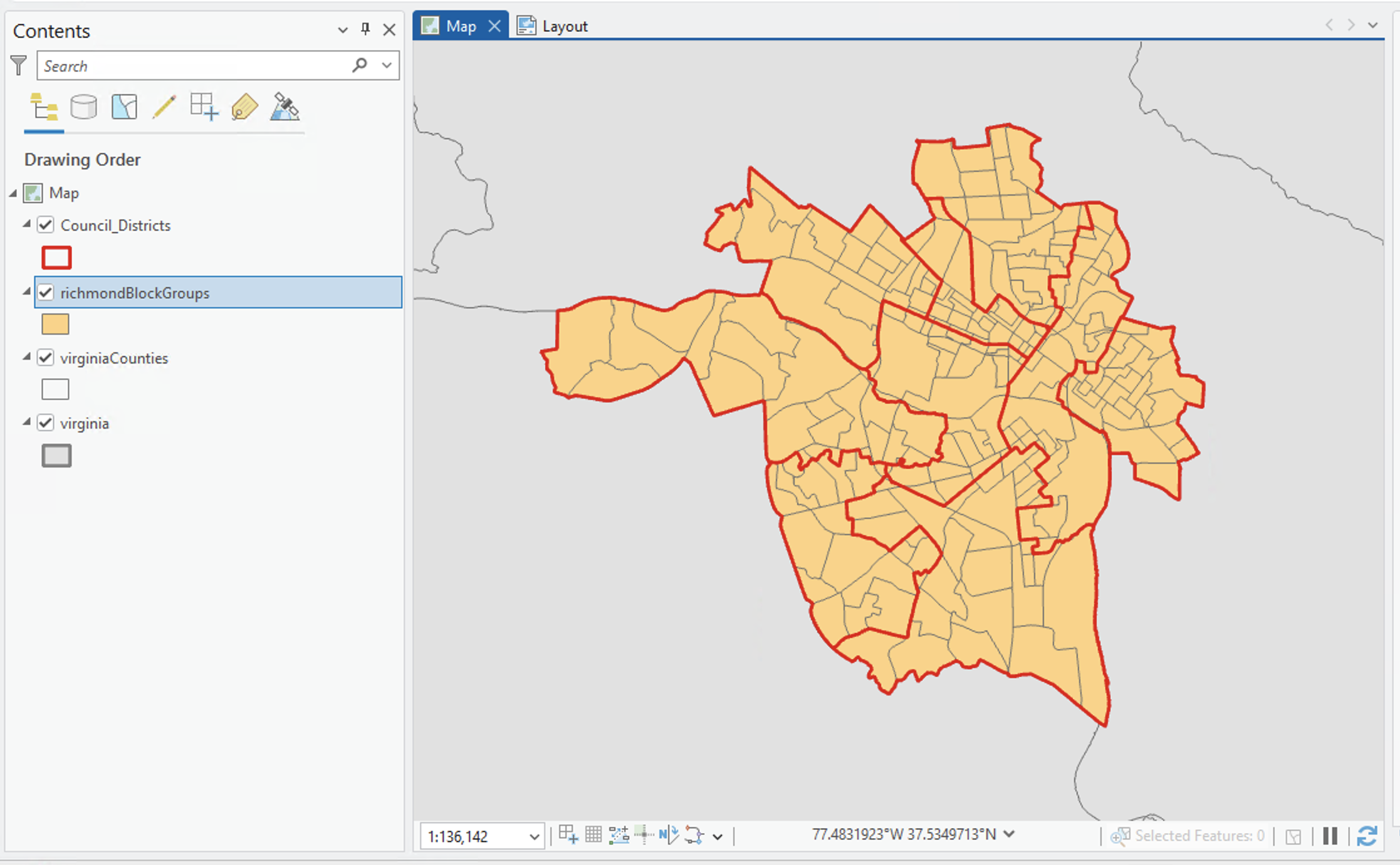
While the Council_Districts layer is selected, click “Fetaure Layer” > “Swipe” and compare the districts to the block groups. They really do not line up well! This is a common problem among geographers and spatial analysts. Census data is the gold standard for demographic information, but their statistical boundaries don’t always line up with municipal or ecological boundaries that we sometimes want to use for mapping. We can solve this through something called areal interpolation. There are a lot of ways to compute areal interpolation, and for the sake of this lab, we’ll just do a simple one with some off-the-shelf tools from ArcGIS Pro. More on that later.
For now, try a “Select by Location” query to get a sense of just how many block groups are going to need to be interpolated. While richmondBlockGroups is selected, open “Select by Location” and search for the inverse spatial relationship of features from richmondBlockGroups that are “within” Council_Districts.
Q1
How many of Richmond’s block groups are not within with the city’s council districts?
Pre-processing the spatial data
That number is fine, but it’s visibly incorrect: there are plenty of block groups that clearly should be excluded from the selection because they are almost entirely inside of their city council district.
We can make this nunmber a little more precise by removing areas where people do not actually live, like the James River, which provides a handy natural feature for evening out some of the topologically imprecise areas.
When I talk about “topology,” by the way, I just mean geometric relationships between the different vector layers. If something is “topologically sound,” it doesn’t have any weird slivers or errant island points relative to other layers we are querying it against. In GIS, there are more complex and specific definitions for topology, so just be aware I’m using the term a little more broadly here.
In essence, what we want to do is 1) align those block groups that are mostly within city council districts by 2) subtracting the James River from the block group and city council district layers. We can do this with a combination of the Pairwise Buffer, Erase, and Clip tools, plus some feature editing.
- Load this hosted feature layer of the James River into your project with “Add Data From Path” > Paste the URL
- Run a Pairwise Buffer on the
James_River_RVAlayer, using a distance of 300 US Survey Feet. Give it a name likeJamesRiver_buffer300. Here, we are trying to find a buffer distance that does not disturb block group topology (e.g., the buffer shouldn’t intersect across block groups in weird ways). 300 feet seemed to work.
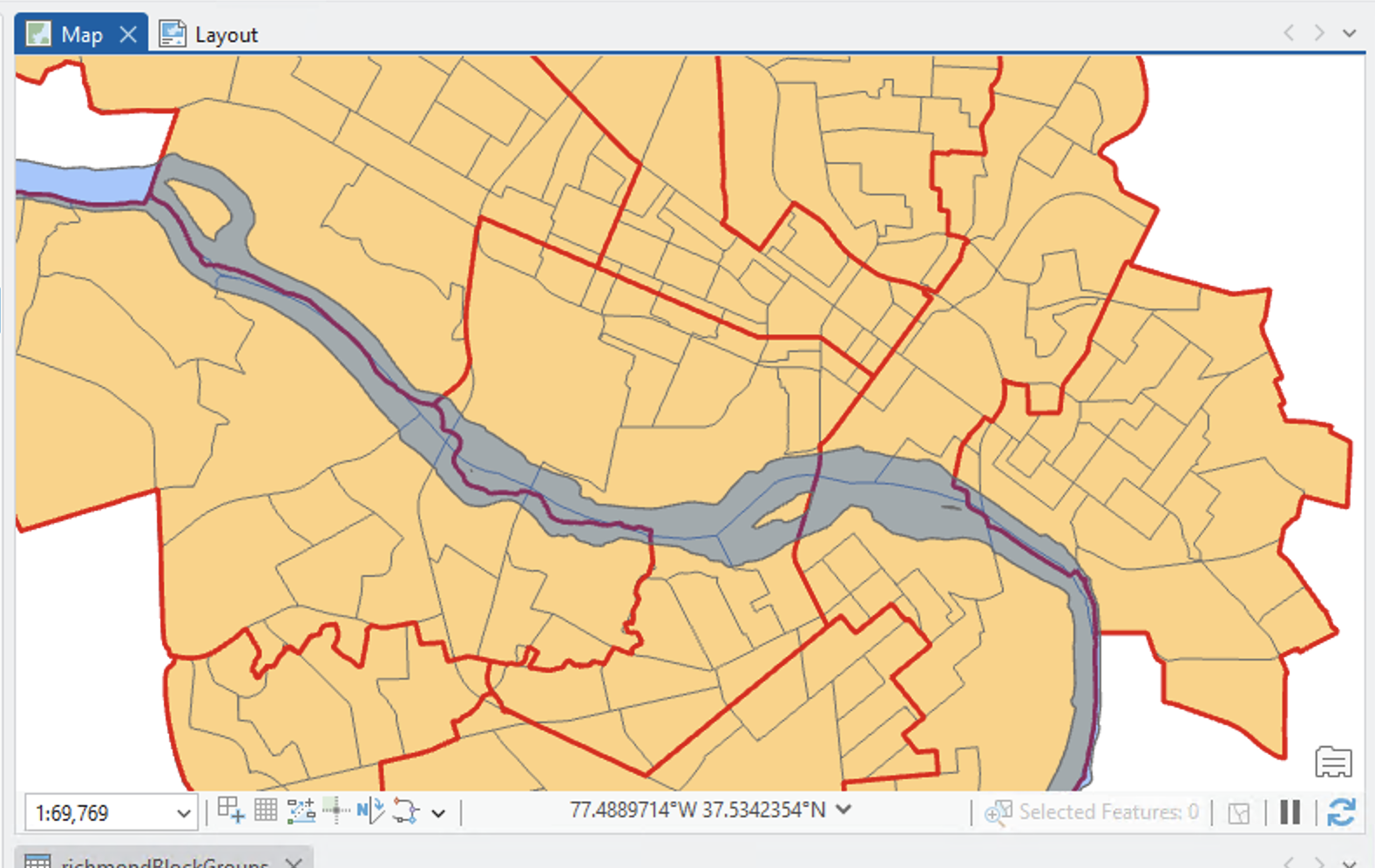
- Now run the Erase tool on both your
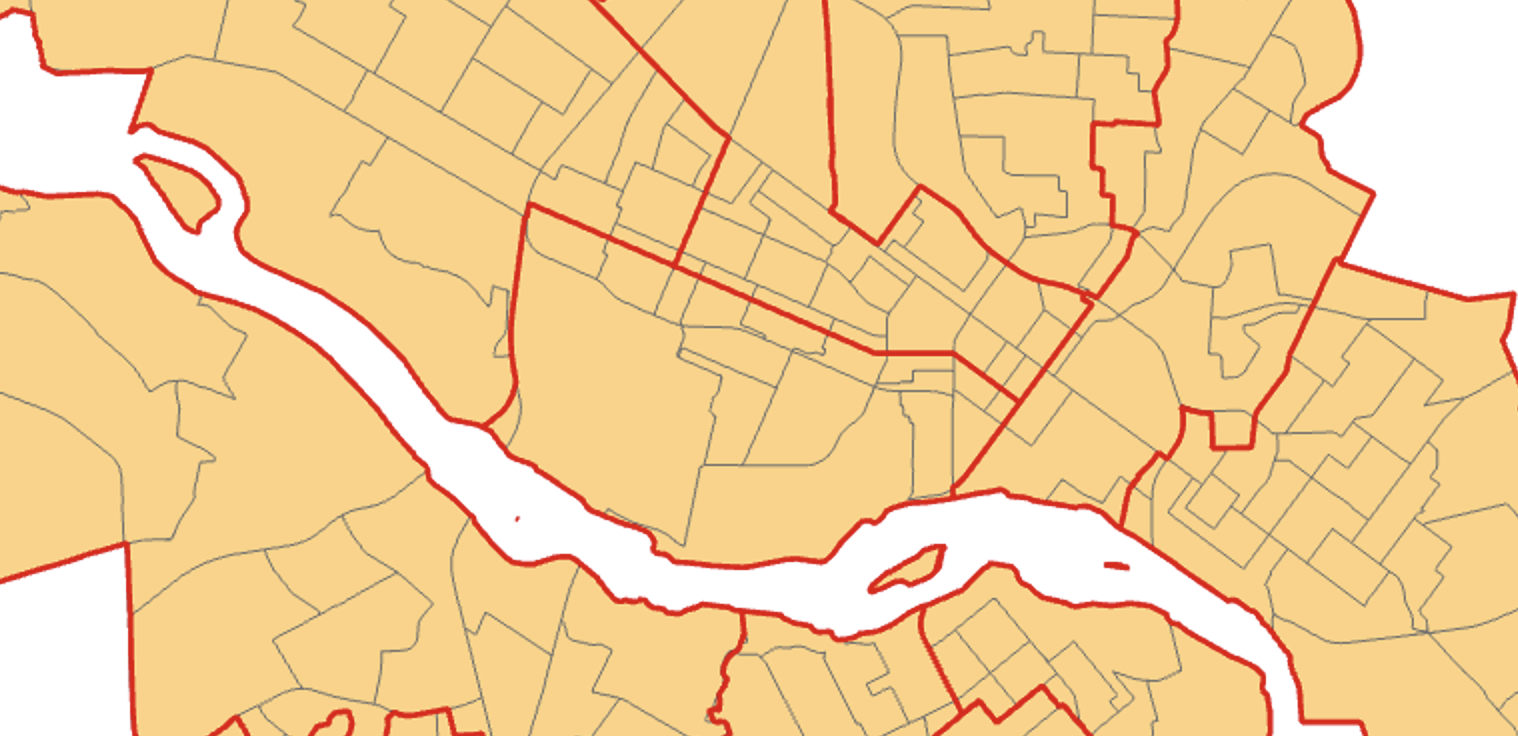
Council_DistrictsandrichmondBlockGroupslayers, naming the outputsCouncil_Districts_EraseandrichmondBlockGroups_Erase. This creates two layers that share greater topological integrity, which we can use for more precise spatial selection queries:
- Unfortunately, there are still some annoying slivers in other places which are throwing off the selection query:
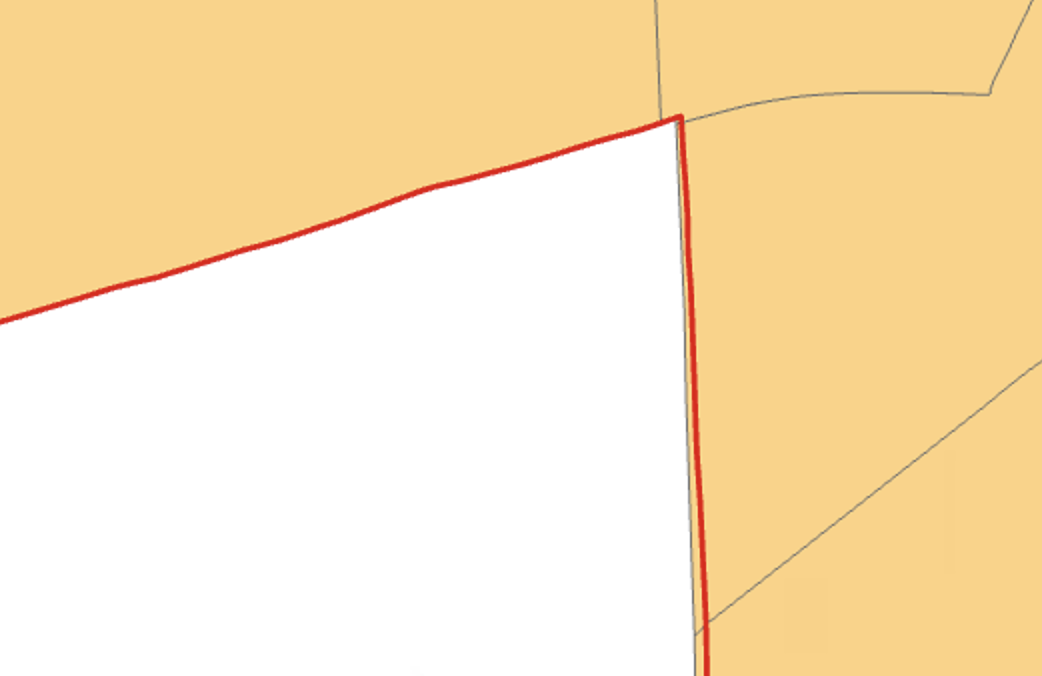
- Fortunately, we can Clip that sliver away. Open the Clip tool using
richmondBlockGroups_Eraseas the input andCouncil_Districts_Eraseas the clip feature. You can name the output something likeRichmondBG_Erase_Clip. - Now try the spatial selection query one last time, using these parameters:
- Input features =
RichmondBG_Erase_Clip - Relationship = “Within”
- Selecting features =
Council_Districts_Erase - Check “Invert Spatial Relationship”
- Input features =
Q2
What is the difference between your first estimate for how many of Richmond’s block groups are not within with the city’s council districts, and your current estimate? (e.g., subtract this answer from your answer to Q1)
This new estimate suggests that about half of the block groups in Richmond substantially cross over city council districts. This is important information to know because it means that about half of the block groups we aggregate up to city council districts will suffer from some kind of areal distortion. It’s okay—necessary, in fact—to make estimations when you are doing geospatial analysis. But you should understand the scale and scope of those estimations, why you are making them, and what their impact on the final analysis will be.
If we wanted to really drill down into the kinds of quantitative distortions that the block group crossovers will produce, we could figure out which city council districts contain the highest number of block groups entirely within their boundaries. The more block groups entire within a council district boundary, the less distortion in our final maps, and vice versa.
Before you proceed to the next section, do a bit of cleaning up:
- Clear any lingering selections
- Group
james_buffer_300,RichmondBG_Erase_ClipandCouncil_Districts_Erasetogether, name them something like “Preprocessing,” move them to the bottom of the map, and turn them off - Remove
richmondBlockGroups_Erasefrom the map
Downloading tabular data with Census API
Now that we have block group data for the city, let’s see if we can grab the descriptive, tabular data attributes that our city colleagues have requested from us.
The city employee who reached out to our “lab group” requested that the following attributes be joined to city council districts:
- Race/ethnicity
- Sex
- Age
- Education
- Median home price
- Median rent
- Household income
- Housing tenure rates (e.g., rent vs. own)
- Poverty rate
- Transit access
- Travel to work
You may have used the Census data website (https://data.census.gov) to download this kind of data before. It’s a great site, but because we want so many variables, it might be easier to get the data using the Census API.
An API—short for application programming interface—is simply a set of rules for how a person (like you or me) queries and accesses data through an app (like the Census) for use in particular projects (like web apps or GIS maps).
The Census provides a fantastic user guide for their API. You can request up to 50 variables in a single query, so we have plenty of wiggle room here—but before you proceed, you need to request a free API key!
Register for a key
It is dead easy to register for an API key:
- Go to the Developers site
- Click on the Request a KEY box on the left side of the page
- Fill out the pop-up window form
- You will receive an email with your key code in the message and a link to register it
Save the API key somewhere! Put it in a password manager, word doc, notes app note, whatever. You’ll use it in the next section.
Use an ArcGIS Notebook to download census data
In this section you’ll use an ArcGIS Notebook to fetch, convert, and download census data. ArcGIS Notebooks are web environments for executing Python code. I prepared a Python notebook for you to download, upload to ArcGIS Online, and run from your AGOL profile. The next steps walk you through the process.
First, log into ArcGIS Online (https://www.arcgis.com/) and go to the “Content” > “My content”. You should see a page like this:
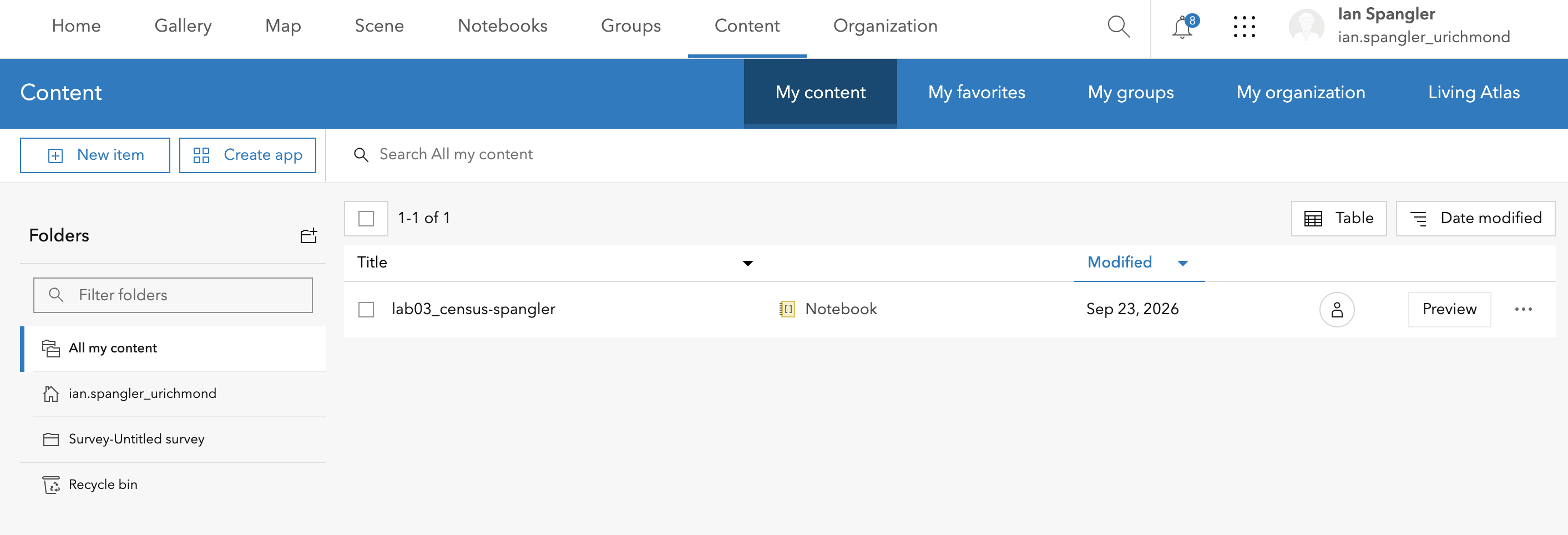
The Python notebook is in hemisphere/geopower/STUDENTS/GEOG248/_data/lab02/census.ipynb. Copy it out of the _data/lab02 folder and paste it into your workspace.
Then, in your AGOL account, click “New item” > upload the file census.ipynb > name it something like lab03_census-yourlastname. Include your last name so the notebooks is distinguishable from other similarly named things.
Open the notebook—it may take a minute to load!—and work through it. You won’t have to edit anything other than adding your API key to one of the code blocks. You can execute code blocks by clicking into them and doing shift+return or by clicking the “Play” button.
Q3
- What are the two Python modules that we imported so we could download and process the census data?
- What is an analogy for conceiving how we users can request data from servers via API?
- How many distinct variables are associated with the 2022 American Community Survey?
Fix the GEOID field
The acs2022.csv file came down with a GEO_ID field with fully qualified values (e.g., a chain of unique identifiers): 1500000US517600102011. Basically, we need to get rid of that leading 1500000US if we want to join the table to our richmondBlockGroups layer. You can do this in a number of ways:
Option A
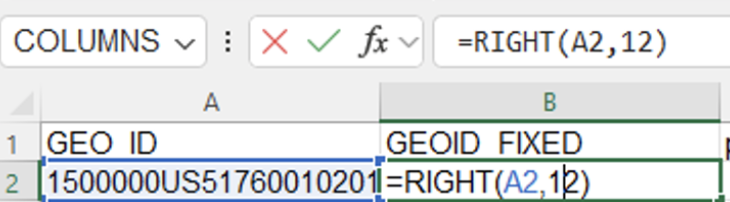
Open the spreadsheet in Excel and create a new column with a title like GEOID_FIXED immediately to the right of GEO_ID. Paste the expression =RIGHT(A2,12) into the topmost cell, then copy-paste that expression into every empty cell below. Then save the finished product as an .xlsx file (Excel spreasheet)
RIGHT in Excel
Option B
Open the spreadsheet in Excel and create a new column at the very end of the spreadsheet. Paste the expression =CONCATENATE(AY2,AZ2,BA2,BB2) into the topmost cell, then copy-paste that expression into every empty cell below. Then save the finished product as an .xlsx file (Excel spreasheet)

CONCATENATE in Excel
Option C
You could use the field calculator in ArcGIS Pro to add 1500000US to the front of the GEOID field. I don’t think this one makes good sense to do, though—you want to avoid using the field calculator unless you absolutely have to use the field calculator.
Once you have the GEOID field fixed and saved in your project workspace, add it to the map and join it to your block groups using the correct GEOID fields. You must export the joined richmondBlockGroups layers as its own feature class. The rest of the lab assumes you named the exported feature class rbg.
Areal interpolation
Now that we’ve got our census data, we need to join it to block groups—and then interpolate it to council districts. There are a lot of ways to do areal interpolation. Most of them are better suited to an advanced geospatial analysis course. We’re going to do something a little quick and dirty, which has lots of drawbacks (it’s dirty), but a really big benefit (it’s quick): the Summarize Within tool.
Summarize Within
Summarize Within “overlays a polygon layer with another layer to summarize the number of points, length of the lines, or area of the polygons within each polygon, and calculate attribute field statistics about the features within the polygons.” We’ll be using the Council_Districts layer as our input polygons and the block groups layer as our summary polygons.

Importantly, the tool uses areal proportions to summarize feature. Let’s say a block group containing 1000 people falls across two council districts, with 40% of its area in district 1 and 60% of its area in district 2. The Summarize Within tool will allocate that value proportionally, so district 1 will get 400 people and district 2 will get 600 peope. This is problematic because, in reality, data is not continuously distributed throughout the block groups, but for the purposes of this assignment we are going to accept that limitation.
Open the Summarize Within tool and set its parameters to the following:
- Input polygons =
Council_Districts - Input summary features =
rbg(or whatever your joined block groups layer is called) - Output features =
districts_race - Summary fields = Select all of your fields with race data, including total population, and give them a statistic of “Sum”
- Uncheck the “Add shape summary attributes”
Click “Run” and open the attribute table of the new layer to confirm that the race data appears summarized as expected.
Q4
Right-click the “Sum pop_total” column and select “Explore statistics.” What is the overall Sum value? (This is just a check to confirm that everything is summarized correctly; it should be between 220,000 and 230,000.)
Repeat
Repeat the Summarize Within step for each of the variable groups, except for median data. It is not possible to summarize median values because they are based on the position within a range. We’ll deal with the median values (median home value, median gross rent, median age, and median household income) later on. In total, you should end up with six summarized layers:
districts_race= racedistricts_sex= sexdistricts_education= educationdistricts_tenure= housing tenure (rent vs. own)districts_commute= commute modedistricts_ttw= travel time to work
Last step: language
Finally, we do want to include data on language spoken in our analysis. I’ve joined this data up to a separate block group shapefile for you because it is a lot of fields. You can download it as a zipped geodatabase by clicking this link. Unzip that file, load it into ArcGIS Pro, and repeat the Summarize Within process one final time using the language block groups as a summary layer.
Requirements and deliverables
| Assigned | Due | Submit |
|---|---|---|
9/22/26 |
9/29/26 |
You do not need to submit a map as part of this lab, but please upload a screenshot (use the Windows Snipping Tool or equivalent) that displays your 7 summarized council district layers in the ArcGIS Pro contents pane.
Next week, we’ll turn this summarized data into one-page visualizations for the client!
| Question | Point Value |
|---|---|
| Question 1 | 1 |
| Question 2 | 2 |
| Question 3 | 3 |
| Question 4 | 2 |
| Screenshot of all processed layers in ArcGIS Pro | 2 |