Lab 3
Illustrator for Cartography Fundamentals
| Assigned | Due | Submit |
|---|---|---|
10/6/26 |
10/20/26 |
Before you proceed, don’t forget to create a workspace for this assignment! Make an ArcGIS Pro project and then save it with a name that makes sense, like lab03_illustrator-fundamentals, under \\hemisphere\geopower\students\GEOG248\yourname.
In this lab, you work through two fundamental processes associated with Adobe Illustrator for cartography: exporting data from ArcGIS Pro to Illustrator, and basic data symbolization in Illustrator. We’ll be making a grayscale reference map of the world that resembles this:
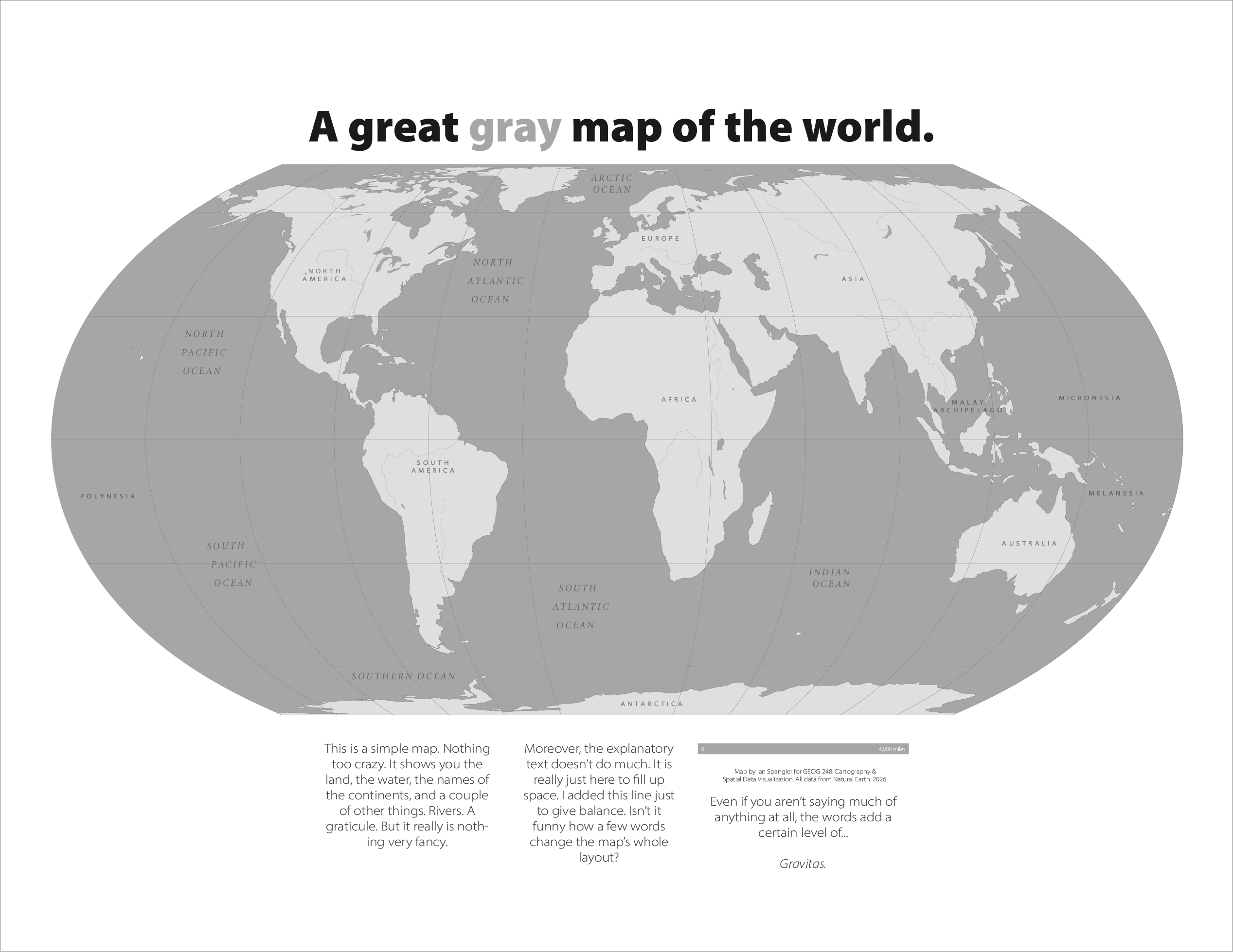
Mapping in grayscale is just as much of an exciting challenge as mapping in color. When you’re constrained to no color, you get a really unique sense of value and intensity and perception. In fact, lots of cartographers say that if you can make a good map in grayscale, it’s a nice way to guarantee the map will be good in color.
Part I: Exporting data from ArcGIS Pro to Adobe Illustrator
In this section, you’ll download and stage geospatial data in ArcGIS Pro, then export it to Adobe and clean it up. When you’re designing a map in Illustrator, you do not need to do any design in ArcGIS Pro. Just stage the data, then do all the cartography in Illustrator.
Invariably, weird things happen to the data during export from Pro to Illustrator. You should expect this and be prepared to handle it as part of your standard Pro-to-Illustrator workflow.
Download the data
First, go to Natural Earth and download all of the cultural and physical Small scale data. We won’t use all of it but it’s easier to download all at once (and not that large in terms of file size anyhow).
To download the data:
- Navigate to https://www.naturalearthdata.com/downloads/
- Click “Cultural” underneath “Small scale data, 1:110m”
- Click “Download all 1:1100m cultural themes”
- Unzip the data into a folder inside your project workspace, perhaps something like
downloaded-data - Repeat for the “Physical” data
Add data to your project
Add the following layers to your ArcGIS Pro project. They should be stacked in the following order:
ne_110m_graticules_30(top)ne_110m_rivers_lake_centerlinesne_110m_lakesne_110m_geography_regions_polysne_110m_marine_regions_polysne_110m_landne_110m_ocean(bottom)
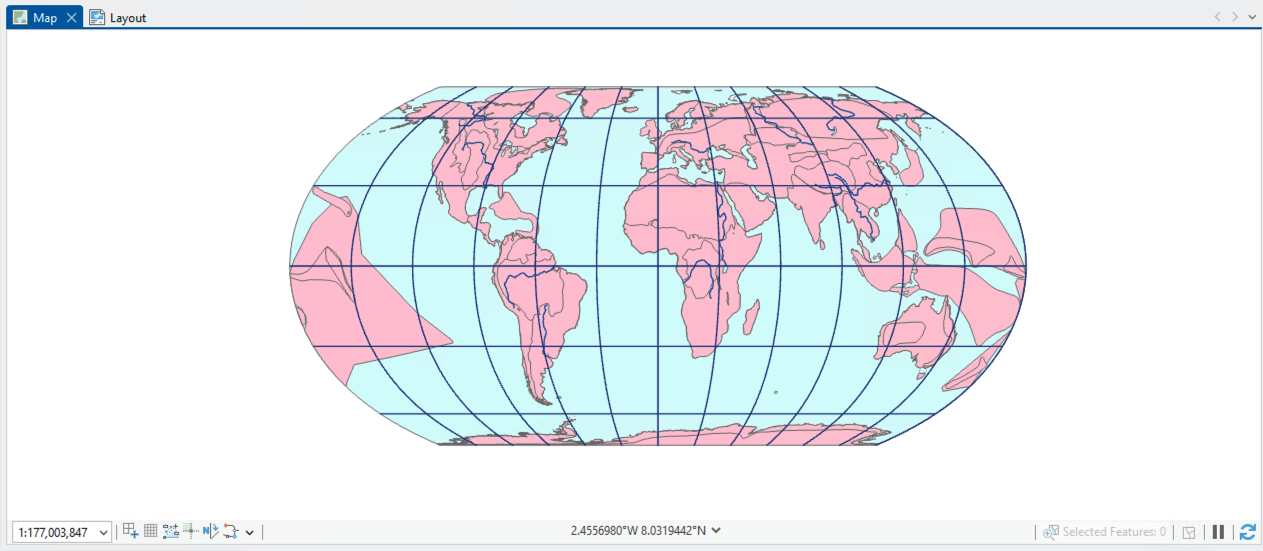
When you’re done, update the projection to Equal Earth. Right-click “Map” > “Coordinate systems” > type “equal earth” into the search bar and click enter > select the “World” one under “Projected coordinate systems.”
Your map should now resemble:
Make labels in ArcGIS Pro
For this reference map, we’ll use the simplest labels available. To get started, create a new group for labels in your table of contents:
- Rename your
ne_110m_geography_regions_polyslayer (e.g., copy > paste it to the “Map”) - Rename it
land_layers - Move it to a new layer group, titled
labels - Add the
ne_110m_geography_marine_polyslayer to thelabelsgroup and rename it towater_labels - Finally, set the symbology for both of the labeling layers to single symbol, no stroke, no fill: basically, they should both be totally invisible
At this point, you should see something like:
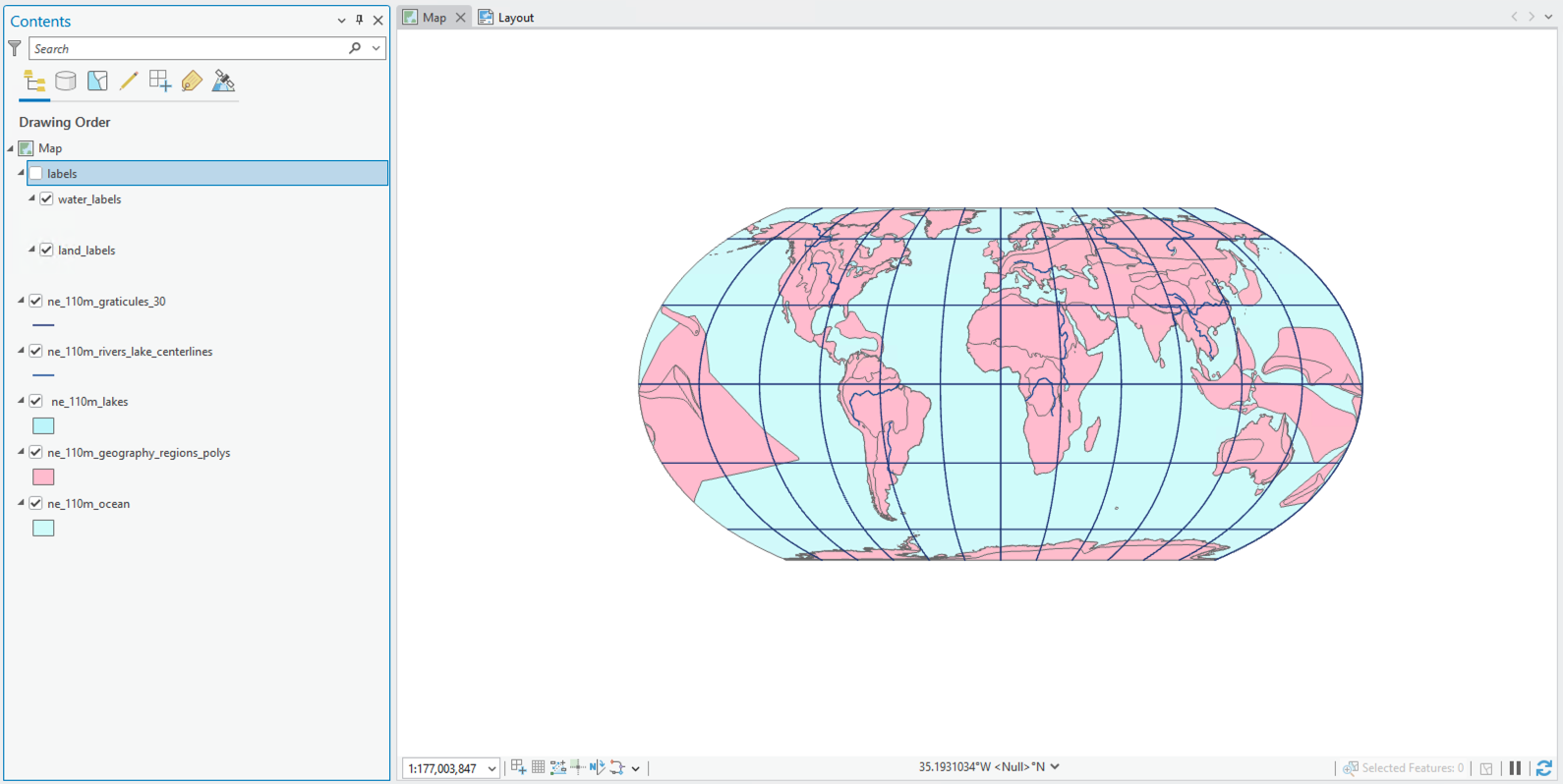
I forgot to add the ne_110m_land layer while I was writing this lab. In many of the subsequent screenshots, you’ll see the regions_polys layer instead of land. It’s fixed by the end, but just be aware of that slight difference throughout.
Now, we’re actually going to wire up these labels in Pro, using its built-in label engine. We won’t fuss too much with the size, text, or orientation. We just need the label text and we can do the rest in Illustrator.
- Right-click
water_labels> click “Label” to enable labeling - Right-click
water_labelsagain > click “Labeling properties” (this opens the “Label class” panel) - Click the “Class” tab > select “SQL” > toggle the SQL editor on > type
scalerank = 0 - Click the “Symbol” tab and change the Font name to any serif font of your choosing
- Click “Apply” (or turn on “Auto Apply”)
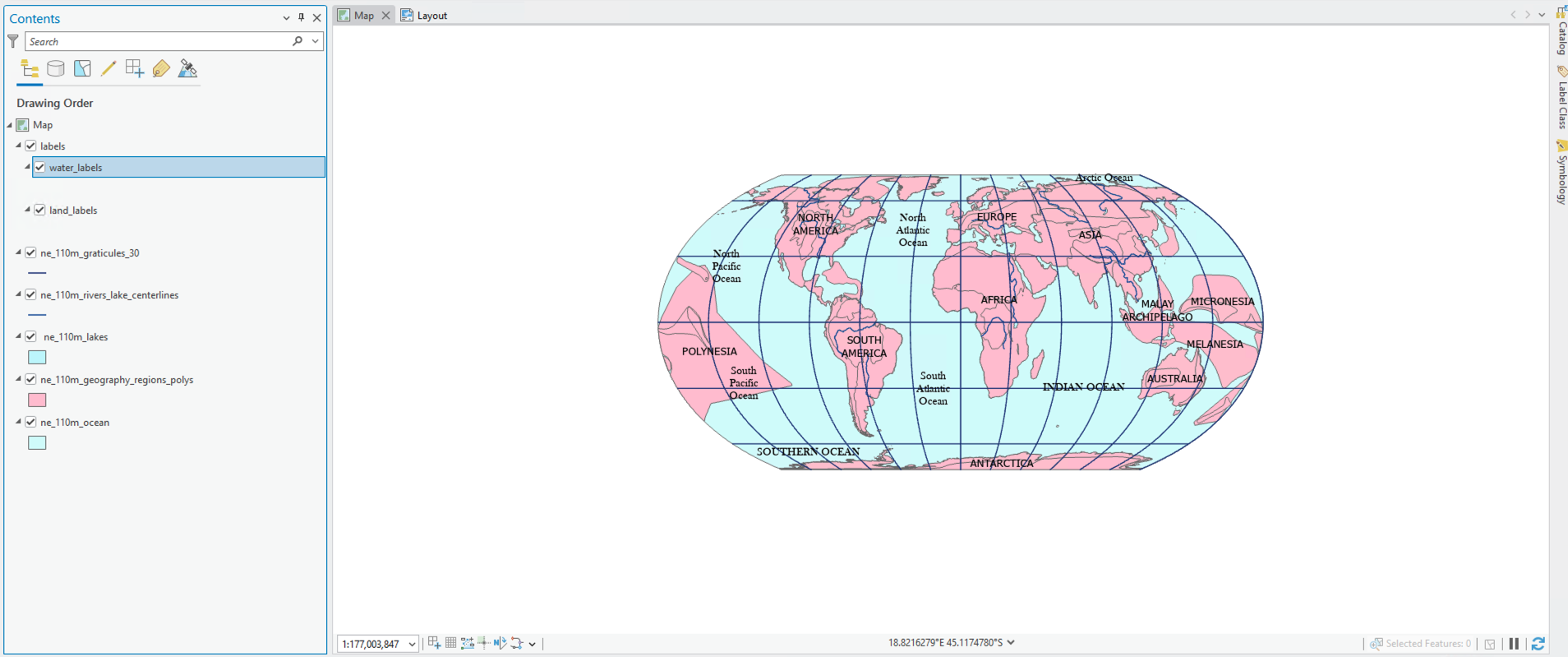
Repeat this process for the land_labels layer. Afterwards, you should have a simple but extremely unremarkable map:
Lay out your map in ArcGIS Pro
Now it’s time to give the unremarkable map a layout and send it to Illustrator—where we will make it remarkable!
For this lab, we’ll use a landscape-oriented 8.5x11” layout. Go ahead and create one matching that criteria, add your map to it, and get it roughly centered (doesn’t have to be perfect).
This next step is really important: you must convert the labels to graphics before exporting from Arc to Illustrator. Follow these steps:
- Right-click
water_labels> Convert > Convert Labels to Annotation - You can use the default settings for this, just make sure you scroll to the bottom of the “Convert Labels to Annotation” tool and rename the “Output Layer” to something like
waterLabelsAnnotation - Repeat step 2 for
land_labels, but leave it styled in a sans serif font - Uncheck the original
labelsgroup. If the labels remain, you should be ready to export to Illustrator
Before you move to the next step, add a scale bar, too! Scale bars are hard to make in Illustrator if you don’t export them from Arc first.
Export for Illustrator
Arc and Illustrator are both good at wrangling vector graphics, so we are going to export the map layout in a format you should become familiar with: standard vector graphics, or .svg. Importantly, however, labels don’t play well between Pro and Illustrator, so we’ll be exporting the features and the layers in two separate steps. Spatial feature data gets exported as svg and labels get exported by themselves as pdf.
Export spatial feature data
- Turn off your label groups so that only the spatial features are visible
- In the Ribbon, click the “Share” tab > “Export layout” > match the export options below:
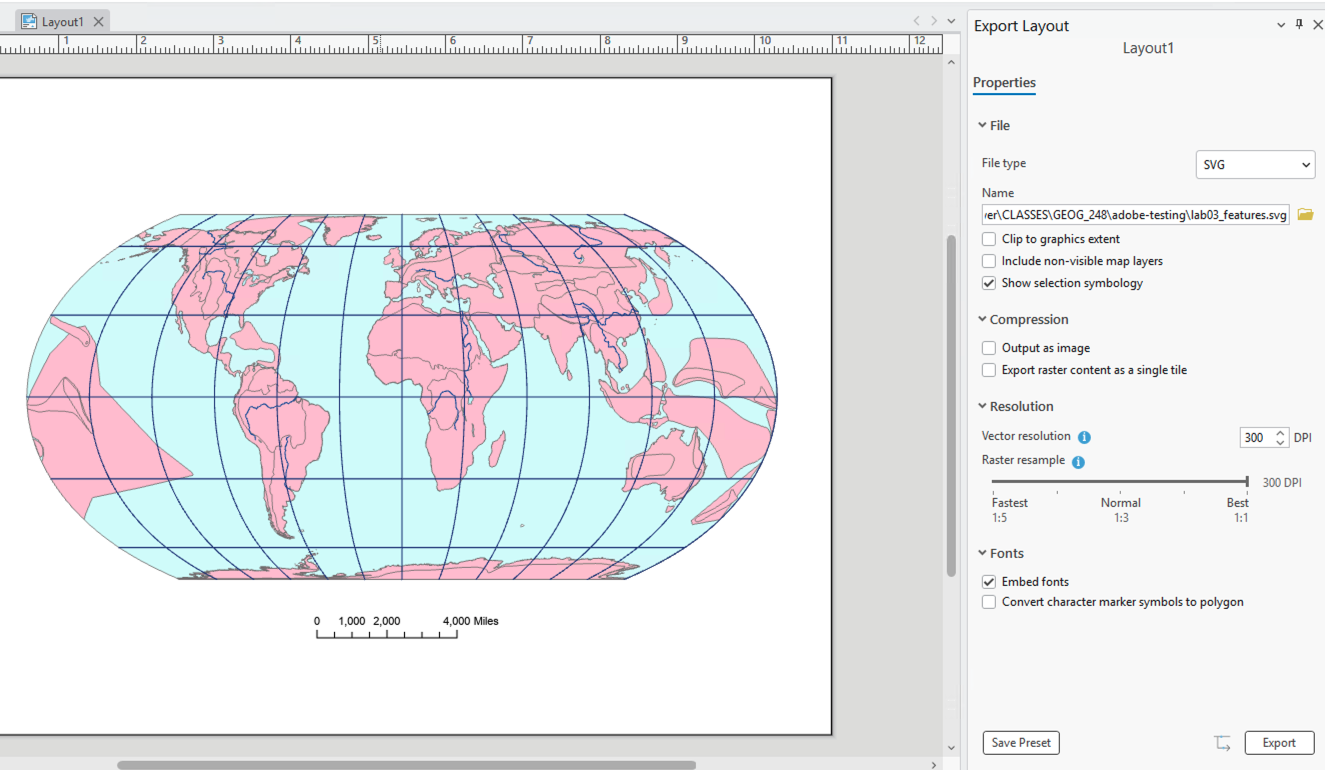
I named the output file something like lab03_features.svg. When you’re ready, click “Export.”
Export labels
- Now turn off all the spatial layers (including the scale bar!) and turn on the labels, so that only they are visible
- Export the layout in PDF format. Ensure the “Embed fonts” option is checked, and make sure you name it something like
lab03_labels:
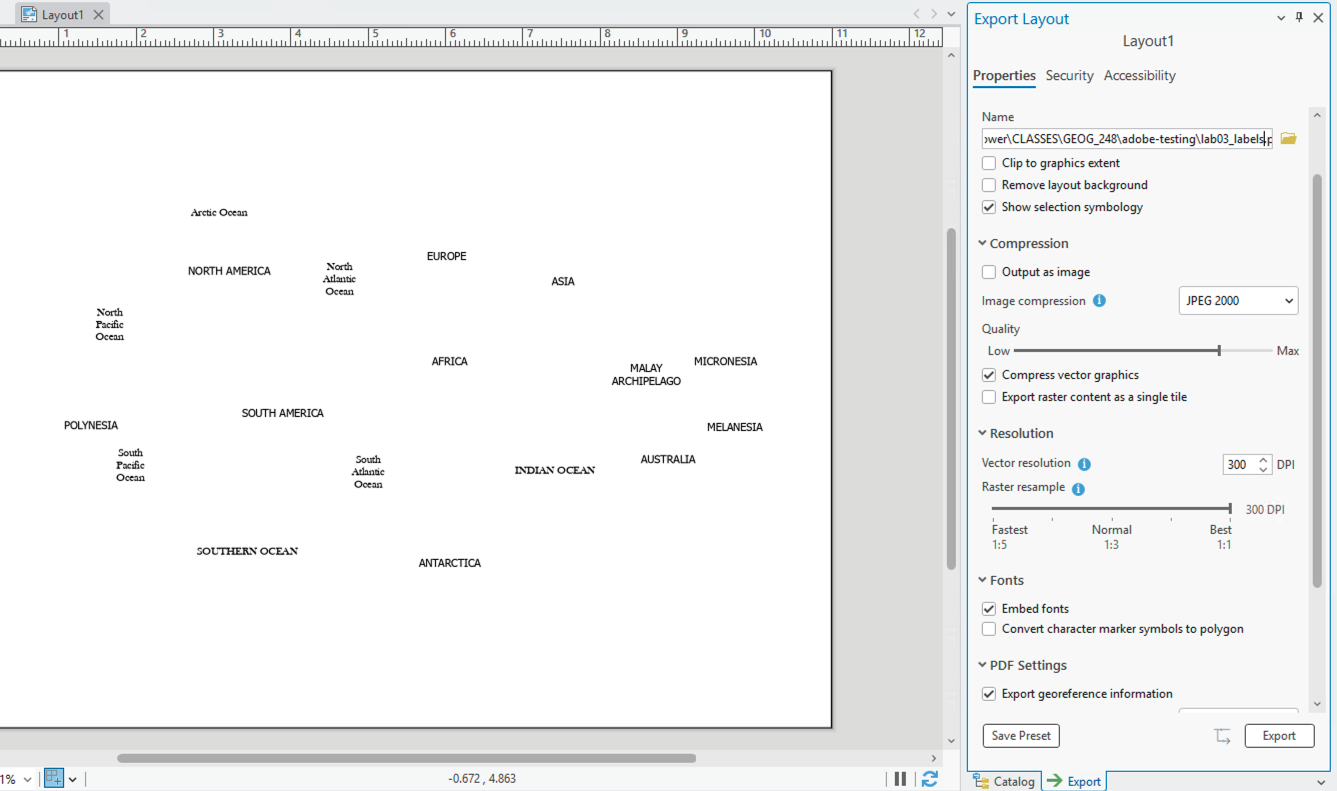
Click “Export” and proceed.
Open the data in Illustrator
- Open Adobe Illustrator and load the
lab03_features.svgfile into it - You should see something like this:
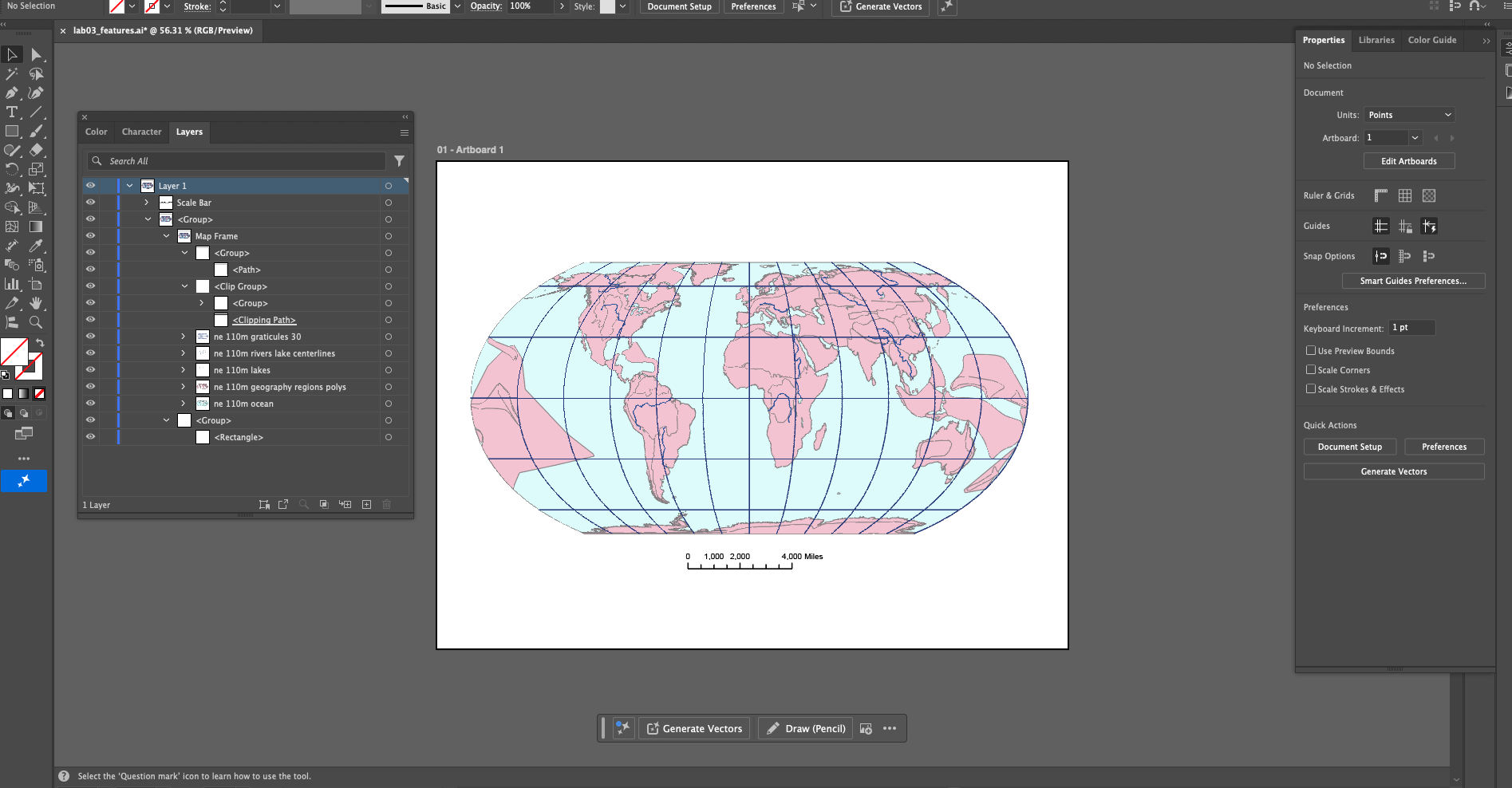
If your Adobe Illustrator screen looks different from mine, that’s okay, it’s highly customizable so you can drag those panes into different configurations. Test a few things out and see what feels right for you. Note as well that if you lose any panes by accident, you can retrieve them by clicking “Window” at the top of the scren > your disappeared pane is probably in there.
- Do “File” > “Save as” > save it as an Adobe Illustrator file
Wrangle labels
You should now have a file named lab03_features.ai (or similar) open in Illustrator. Time to add the labels!… they are annoying.
- Do “File” > “Open” > find your
lab03_labels.pdffile - The labels should appear in a new artboard
- Unfold everything in your “Layers” pane until you see something like this:
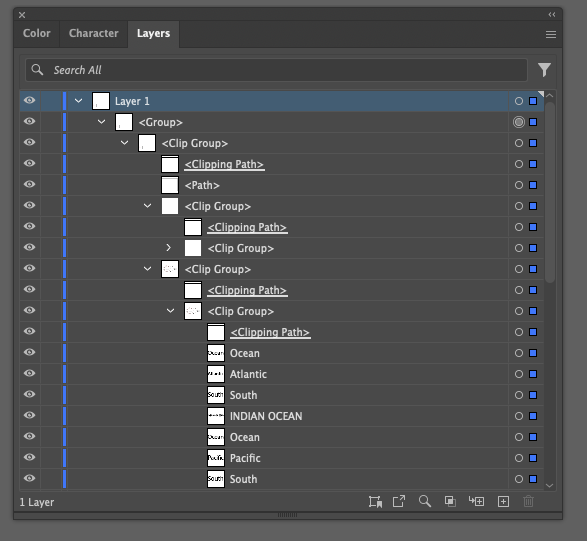
- It’s common for stuff to get “grouped” in really inscrutable ways when you export from Pro to Adobe. Labels get it the worst.
- Find the one layer group where all of your labels ended up. You can find it by toggling groups on and off. Once you’ve found it, rename it “Labels”, and lock it by clicking the empty space next to the visibility icon

- Select the “Layer 1” group > click the little circle to the right. This will select the entire group
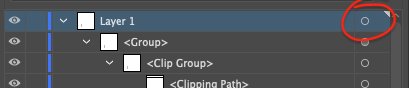
- Right-click somewhere in the artboard > “Ungroup”. This will remove the highest level of grouping for the layers.
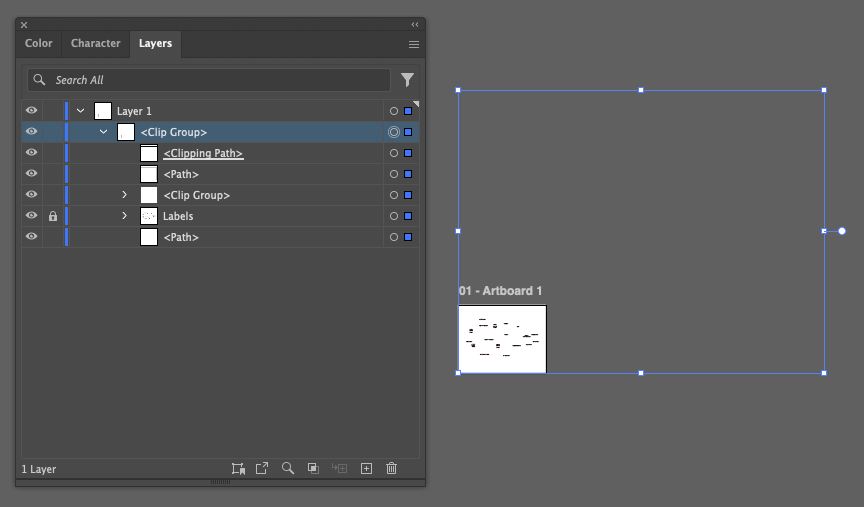
- Now select the next object in the “Layers” panel, which should be titled “Clip group”. Select “Clip group” by clicking the dot, then right-click on the artboard > “Release clipping mask”:
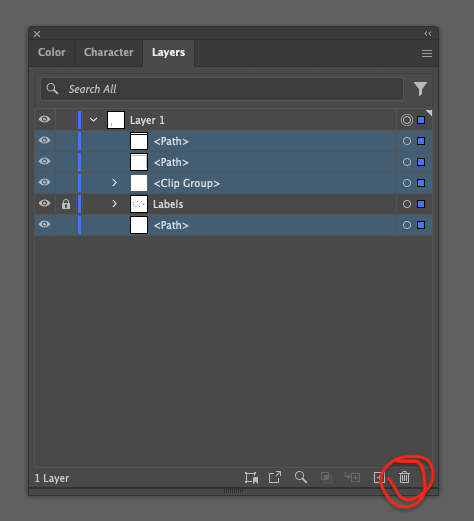
- Now it should be safe for you to delete all the layers that are not titled “Labels” by selecting them all > click the trash icon:
Now, unlock and unfold the “Labels” layer…… and you’ll see a few more junk layers. In this order, try:
- Right-click “Labels” > “Release clipping mask”
- Delete the empty “Path” layer
- Right-click “Clip group” > “Release clipping mask”
- Rename “Layer 1” to “Labels”
Now your label situation should resemble:
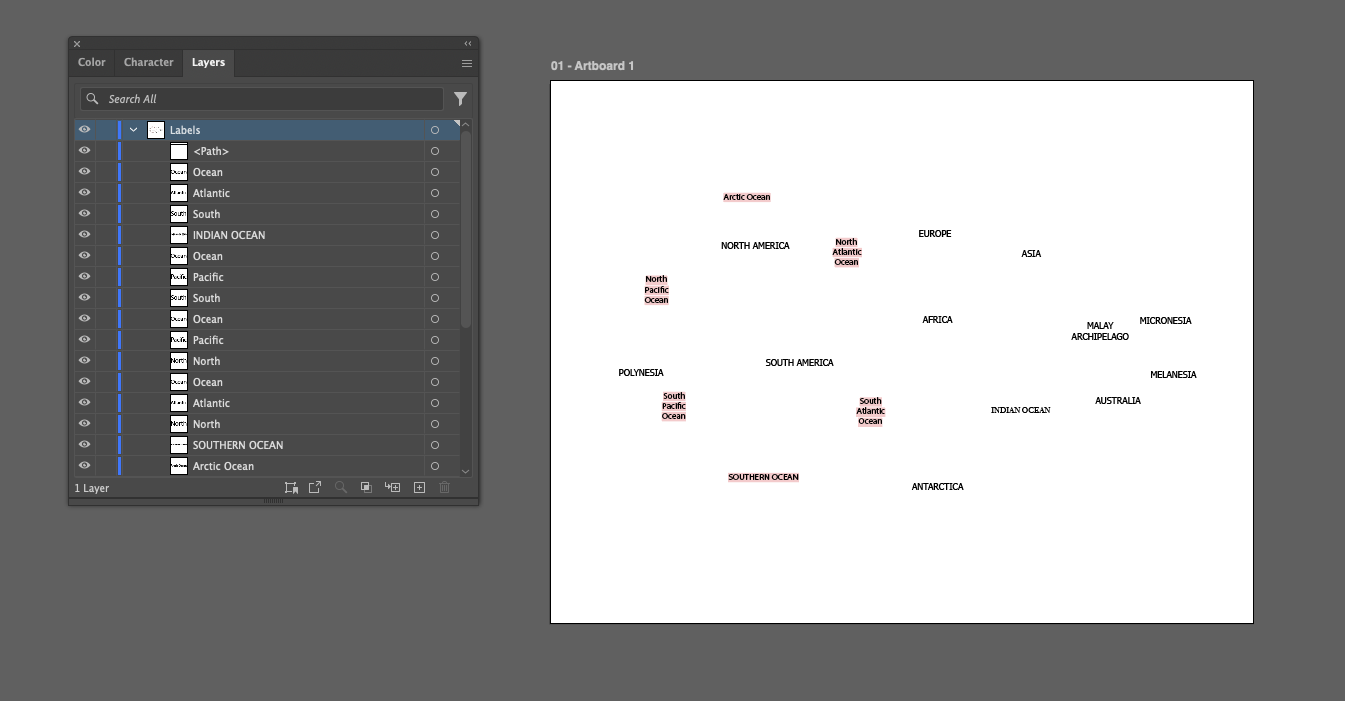
Leave the final “Path” layer—we’ll use this to align the labels to our map.
Those red highlights appear in my screenshot above because I selected a font in ArcGIS Pro that was not available in Adobe Illustrator by default. If this happens to you, no worries, just ignore it for now, we’ll fix it later.
Take this opportunity to group the labels by land and ocean. It sucks that they didn’t retain those groupings when we set it up like that in ArcGIS Pro, but it is what it is. Using the “Select” tool (black arrow), go ahead and manually pick up all the water labels, move them into a new group called “Water labels”, and do the same for “Land labels.” To accomplish this, you will probably need to use a combination of the “Select” tool, the layers pane, and right-click > “Group.”
Style labels
Now that your labels are divided into two groups, you can apply styles to them at the group level. Try it out with water first:
- Select “Water labels” group by clicking the little target in the “Layers” pane
- Once they’re selected, click over to the “Character” pane
- Select the font “Minion Variable Concept Display Italic”, give it a font size of 14, and a tracking value of 200:
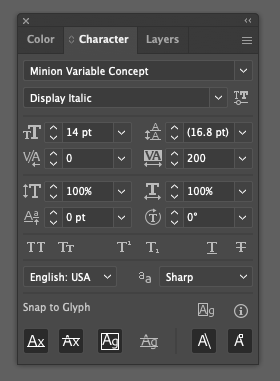
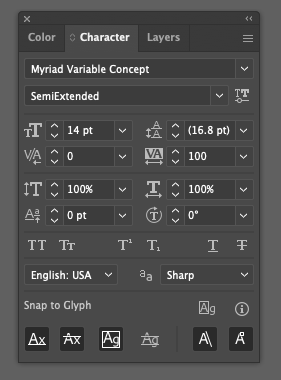
- The result should be a little nicer looking (usually we reserve italicized serifs for moving water features, but in this case, since it is a map of the whole world and no rivers are labeled, we will use them for oceans)
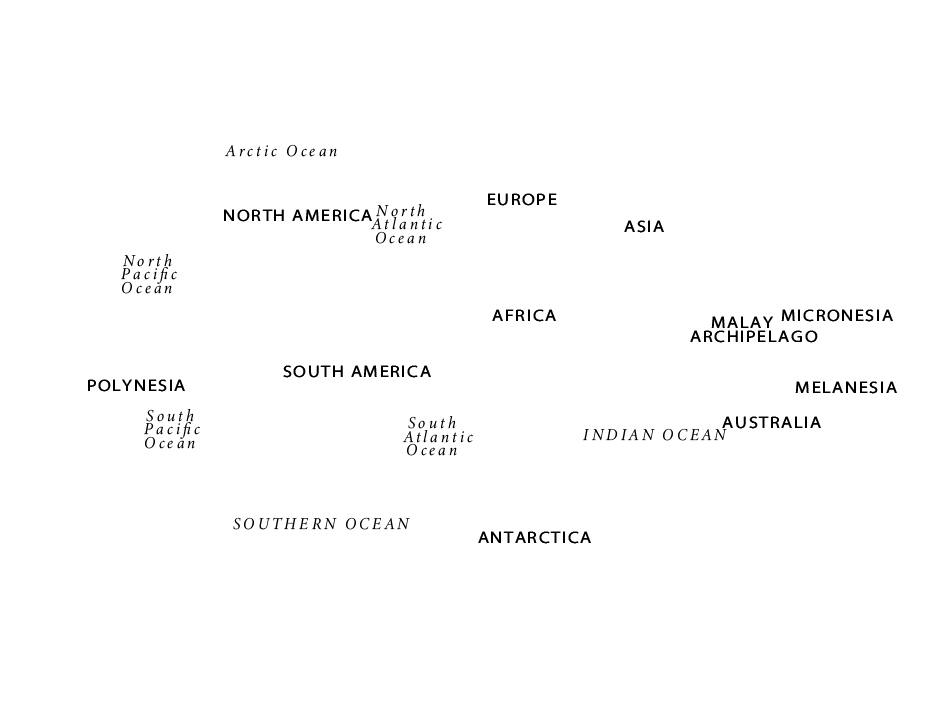
Copy the labels to your map
This part should be easy. In the “Layers” pane, click the little target to select everything. Then, copy (with ctrl+c), open the .ai file containing your spatial data, and paste the labels. Et voila and inshallah, you should see something like this:
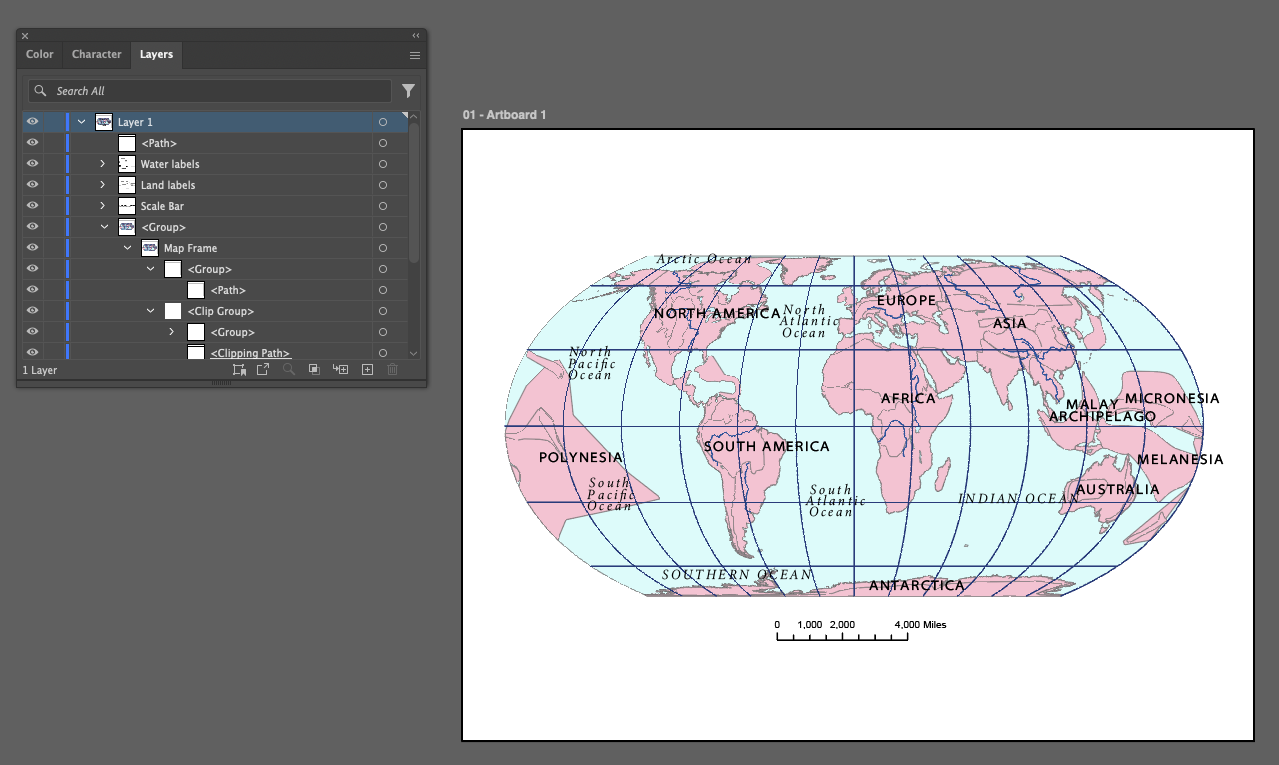
Whew! What a drag. Sorry—the process kind of sucks unless you pay for an extra plugin to make ArcGIS Pro communicate more easily with Adobe, and we don’t do that.
At this point, you can delete that remnant “Path” layer.
Clean up your map data layers
Turn your attention to the actual map layers. Right now these things are still in a layer called “Group.” Ultimately, you want each distinct geographic feature contained inside its own layer, and each layer should only consist of “Path” objects—no clipping masks or groups. Those things are vestiges from the ArcGIS Pro export.
Use the “New layer” button (the + at the bottom of the layers pane) to make new layers until you can drag and drop each of your map features into a category. By the time you’re done, you should see something like this…
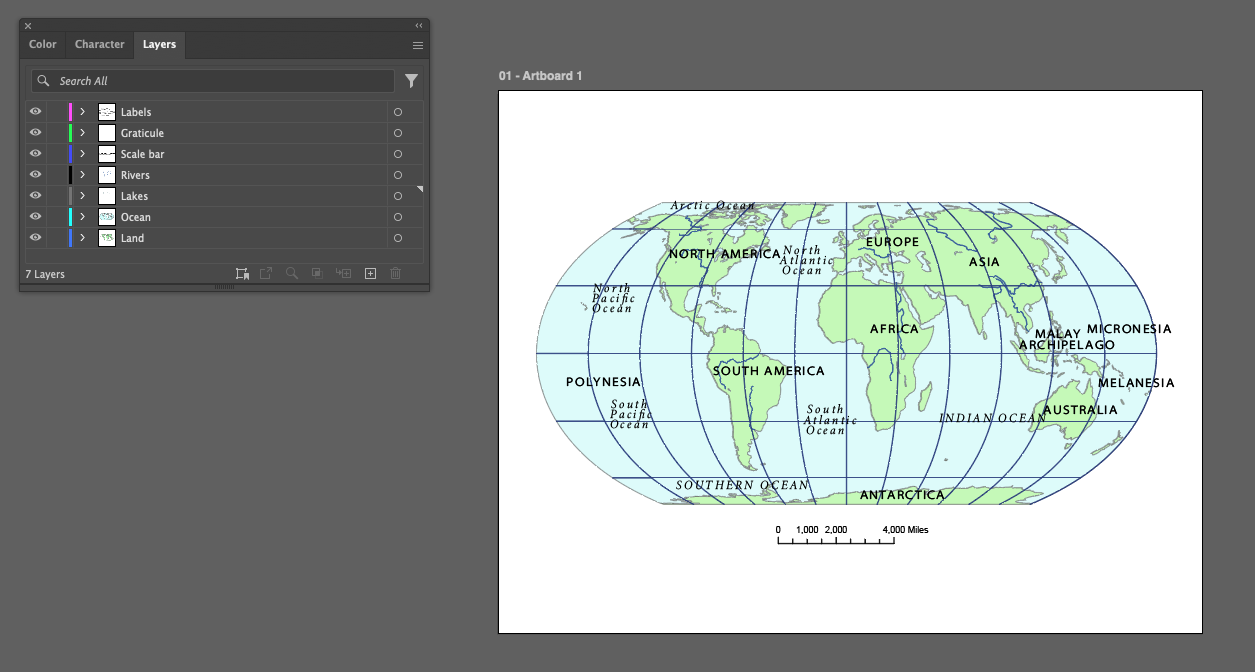
… but you’re not fully done yet.
Before proceeding to Part II, go through each layer in your “Layers” pane and do another round of ungrouping and unclipping. There are a lot of extra nonsense layers—with evil names like “Group” and “Clipping Group” and “Path” and “Clipping Path”—floating around within them. This is gonna be annoying.
For each layer, ungroup them, release them, delete them. And as you go, don’t worry if you accidentally delete something you didn’t mean to. You can always “undo” with ctrl+z or “Edit” > “Undo”.
I recommend creating your layers first, then moving your grouped items into them, and only ungrouping/releasing masks after that. I think this will keep your ungrouping process a bit more organized.
You’ll end up with a lot of weird, residual “Path” objects that must be deleted for you to meaningfully edit color and stroke of your map features. To remove those “Path” objects all at once, do Object > Path > Cleanup. Make sure “unpainted” is checked; this will remove all empty “Path” objects from your project.
Part II: Cartographic Symbolization in Illustrator
For this part, I am just going to give you some general advice and specifications instead of blow-by-blow instructions. Again, here’s a sample map:
I want you to click through the software on your own and figure out how to apply these specifications. Some high-level tips:
- If you’re not actively working on a layer… lock it!! It’s easy to accidentally move a layer that you didn’t mean to… and it’s a pain to realign them afterwards.
- Use keystrokes described in Activity 05 to make your life easier/faster
- When toggling between color, be conscious of clicking into the “Stroke” or the “Fill” options—they are different things and it’s easy to mix them up.
- If you need to apply color changes to a particular object/feature, use the “Select” icon in the layers pane
- Illustrator is really sensitive to how objects/layers are selected. Just be aware of this; something will probably happen where you edit a layer you didn’t intend to, or nothing happens when you expect it to. Likely, it’s an issue with what layer is selected
At each point you’re making a big change, consider the “squint” test. Zoom to your full map and give it a little squint look. What emerges to the fore? What do you see and what do you not see? This is a weirdly excellent way to check if the map has harmony and appropriate contrast.
Color
When you are selected colors for objects and text, try clicking the “hamburger” menu to force a grayscale option:
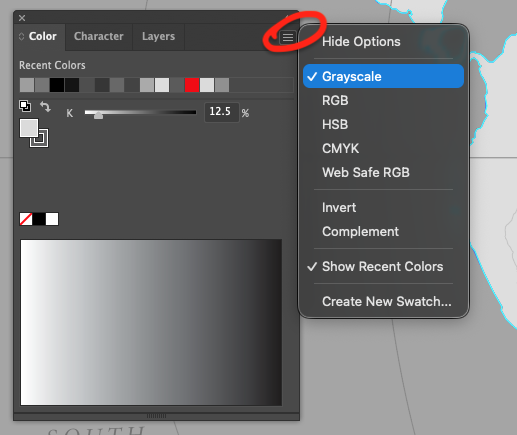
These are the grayscale “colors” I used for layer fill, feel free to replicate or test your own:
- Ocean = 35%
- Land = 12.5%
- Lakes = 35%
- Rivers = 30%
- Graticule = 50%
For the label layers, I started with the fill of whatever feature, then nudged it up until the contrast felt sufficient. Start with a value 10-20% higher—so e.g., if ocean is 35%, try ocean labels between 45-55%—see how it feels, and adjust from there.
Typography
For typography, consider:
- Use fonts like Minion and Myriad (that’s what I used)
- Pair serifs with sans serifs
- Play around with “tracking” values in the “Character” panel
- Play around with condensed vs. extended fonts
- Try to give all of your labels lots of evenly spaced breathing room
- Don’t let labels cross over the graticule or intersect land/water features in any weird ways
- You’ll probably need to double-click into each text box to access the actual texts
Map elements
- I made my own scale bar by simply dragging a rectangle to the exact width of the original scale bar; then, I deleted the original scale bar
- I added a little neatline
- The title and other kinds of text can be tricky to wrangle. Make sure you drag the text boxes when you want to make text, instead of just clicking to place text. Clicking will make the wrong kind of text (try it and you’ll see what I mean).
Deliverables
| Assigned | Due | Submit |
|---|---|---|
10/6/26 |
10/20/26 |
No questions for this lab. Just submit your map to Canvas by Tuesday 10/20/26—but please do so in both .pdf and .ai format.